MassageExchange.com Chat
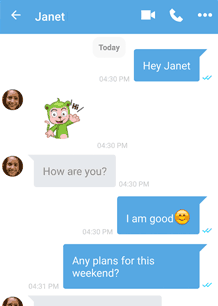
Our Chat system enables instant private member-to-member communication via:
Chat runs on desktops, tablets, and mobile devices.
Requirements
- Chat is currently available to subscribers only. Token-only members and members may not participate in a Chat session at this time.
- Both parties must be on-line to initiate a chat. The 🗣Chat button will be dimmed 🗣Chat if the target party is off-line, or if one or both parties are not subscribers.
-
Browsers supported:
 Chrome,
 Firefox,
 Edge, and
 Safari.
Others may work, but we make no claims.
For the best experience, especially for audio/video calls, the latest release of your browser is strongly recommended!
Safari.
Others may work, but we make no claims.
For the best experience, especially for audio/video calls, the latest release of your browser is strongly recommended!
- Our Chats facility requires third-party cookies to be enabled in browser settings. If "Block third-party cookies" is enabled, common in Chrome/Firefox, Chats will not load, and you'll see an error.
Starting a Chat Session
Tip: Reserve a Time. Most members don't stay logged in for than 5-10 minutes. If you'd like to Chat with a fellow member, it's best to pre-arrange a time, via e-mail, when you can both be online. (For distant contacts, be careful of time zone differences!)
To start a (Text) Chat session:
- Click the 🗣Chat button at the top of the member's detailed profile. (To view a member's detailed profile, click their username at the top left of their abbreviated profile.)
- Type something in the text box at the bottom (labeled 'Type your message') and send it. This will initiate the call and notify the other member that you wish to chat. The text entry area looks like this: Type your message
Please be patient. It may take 5-10 seconds to go through and more time for the receiver to type a reply.
Starting an Audio-Only Chat Session
After starting a text chat session (described above), click .
You may need to click the microphone
Starting a Video+Audio Chat Session Popular
After starting a text chat session (described above), click
Tips
Ringing in your ears?
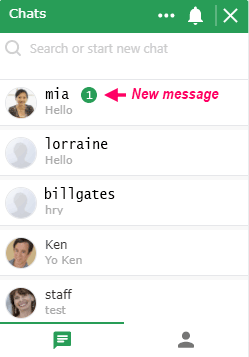
Do you hear chimes? Then you have a new message. Open your Chats window to view your new messages – those tagged a green circle + number, like this: . Click to view.
🚫 Disable Chat
To disable the Chat feature for your account,
visit Profile
Delete,
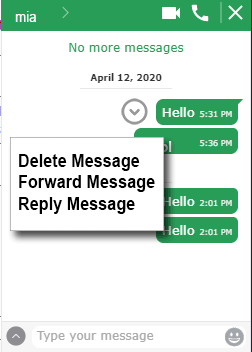
Individual messages may be Deleted/Forwarded/Replied-to. Open the chat with the member, and hover, or click, a chat bubble and a circle-down-arrow
will appear. Click the to open the Delete/Forward/Reply menu.